¶ Web Interface Navigation
Here, we will get to know the web interface for your AMOS System.
¶ The Main Page
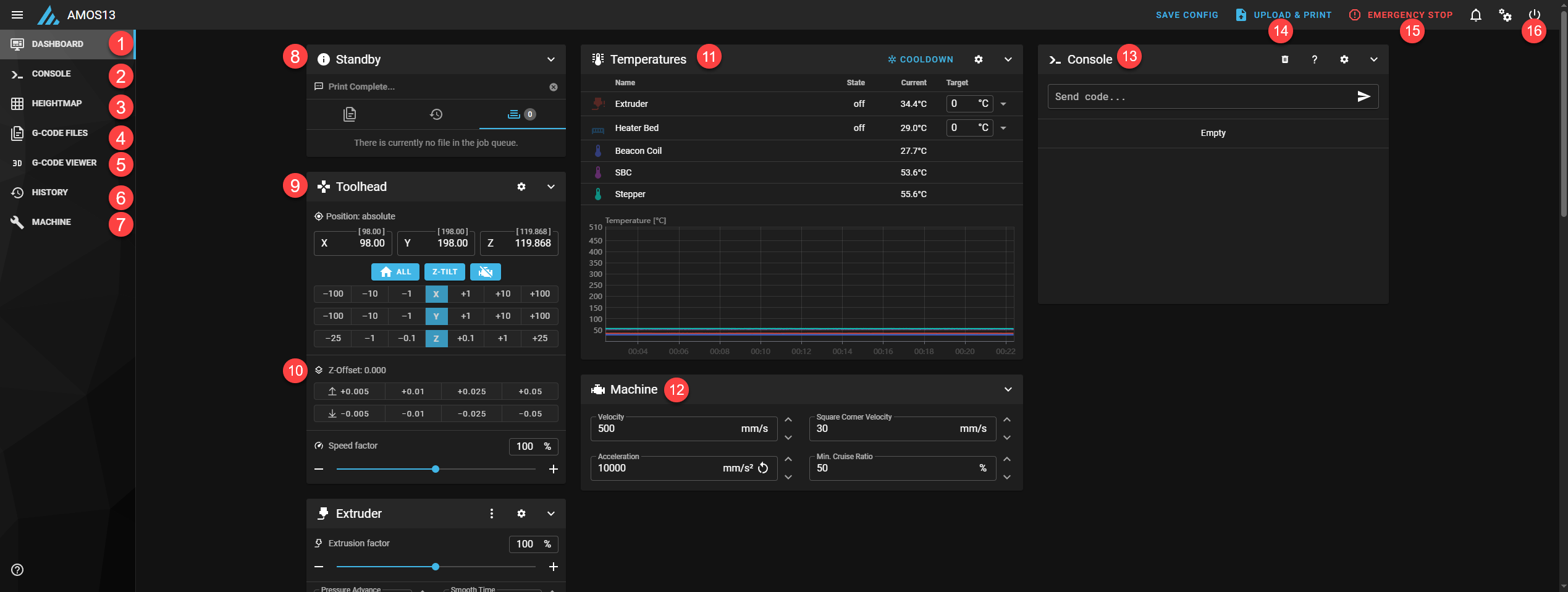
- Dashboard- this will bring you back to the main page, which shows the bulk of your machines' information
- Console- A readout of current and past G-Code that was run, it also allows for manually inserting G-Code on the fly.
- Heightmap- Here you will find the current and saved bed map scans.
- G-Code Files- In this tab, you will find a list of all the files that have been uploaded and are able to print.
- G-Code Viewer- Here you can pull up a G-Code file and view each line of the print, and you can also track the print while it's in progress.
- History- This is where you can find the history of your unit, successes, failures, and what caused the failure.
- Machine- Here you will find all the system files along with the process of updating your system.
- This is the current status of your unit: if it is in standby, printing, and what it is printing. When printing it also allows you to pause, stop, or cancel your current print.
- This Tool Head panel allows you to both home all axes and move your tool head after homing.
- Z Offset adjusts your first layer offset actively; this is rarely used on current units due to the automatic nozzle offset.
- The Temperature panel shows the current temperatures of the extruder, bed, SBC, and chamber. You are also able to adjust the temperature of your system.
- The Machine Panel allows for adjusting active machine motion speeds.
- The Console panel shows a shorthand of what the full Console Tab shows and allows you to manually insert G-Code
- The Upload and Print button will upload a print file and immediately start the print. Please ensure the unit is read and the bed is clear.
- Emergency Stop will stop your unit's software.
- The Power button allows you to restart your unit's individual software packages.
¶ Extruder Panel (Dashboard)
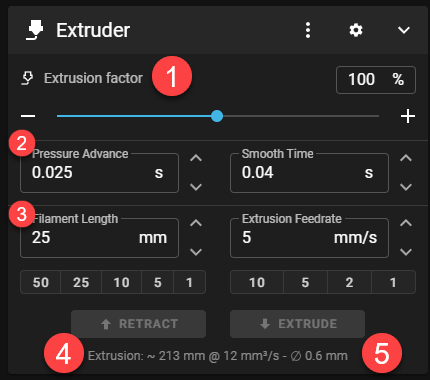
- The extrusion factor will adjust the flow percentage either by using the slider bar or by entering a numeric percentage.
- Pressure advance allows for active adjustment when tuning your materials profile
- Filament length is the amount of material extruded or retracted, with Extrusion Feedrate being the speed during the extrusion or retraction.
- Selecting the Retraction button will back material out of the hotend
- The extrusion button will feed material into the nozzle.
¶ Machine Panel (Dashboard)
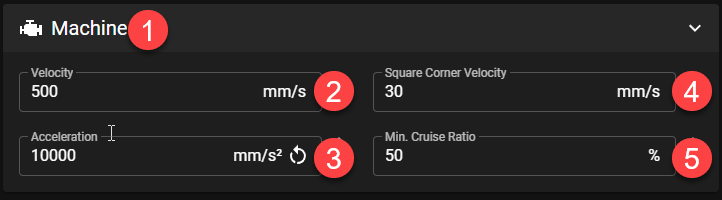
- The Machine Panel adjusts the active speeds and accelerations
- Velocity will adjust your max speed in mm/sec
- Acceleration is the speed at which your unit accelerates
- Square Corner Velocity is the desired speed for a 90-degree corner
- Min. Cruise Ratio set to ensure that at least the specified percentage of a travel is spent cruising rather than just acceleration and deceleration.
¶ Macros Panel (Dashboard)
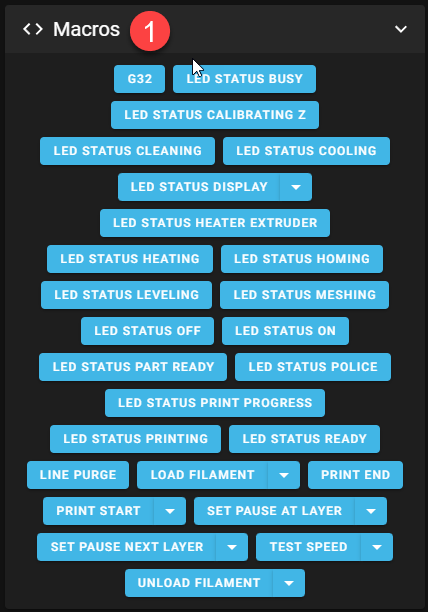
- The Macros panel allows you to manually run macros.
¶ Miscellaneous Panel (Dashboard)
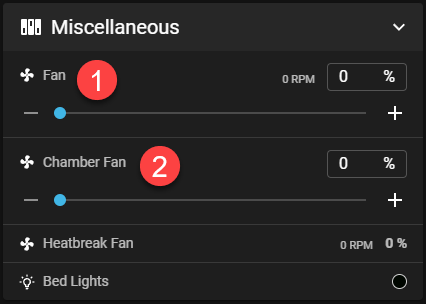
- The Fan will adjust the part cooling fan activity by adjusting the slider or entering a number in the form of a percentage.
- Chamber Fan will adjust the speed of the part cooling fan in the AMOS 300 unit.
¶ LED Panel
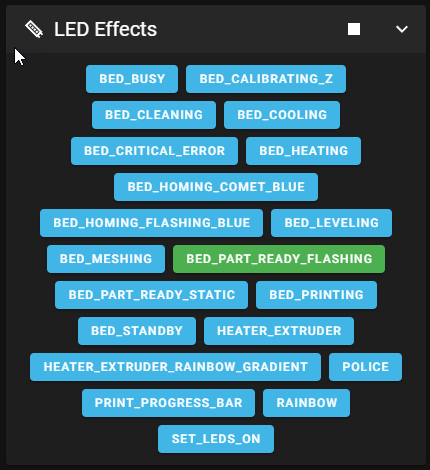
This Panel allows you to manually set the current LED status.
¶ Console Tab
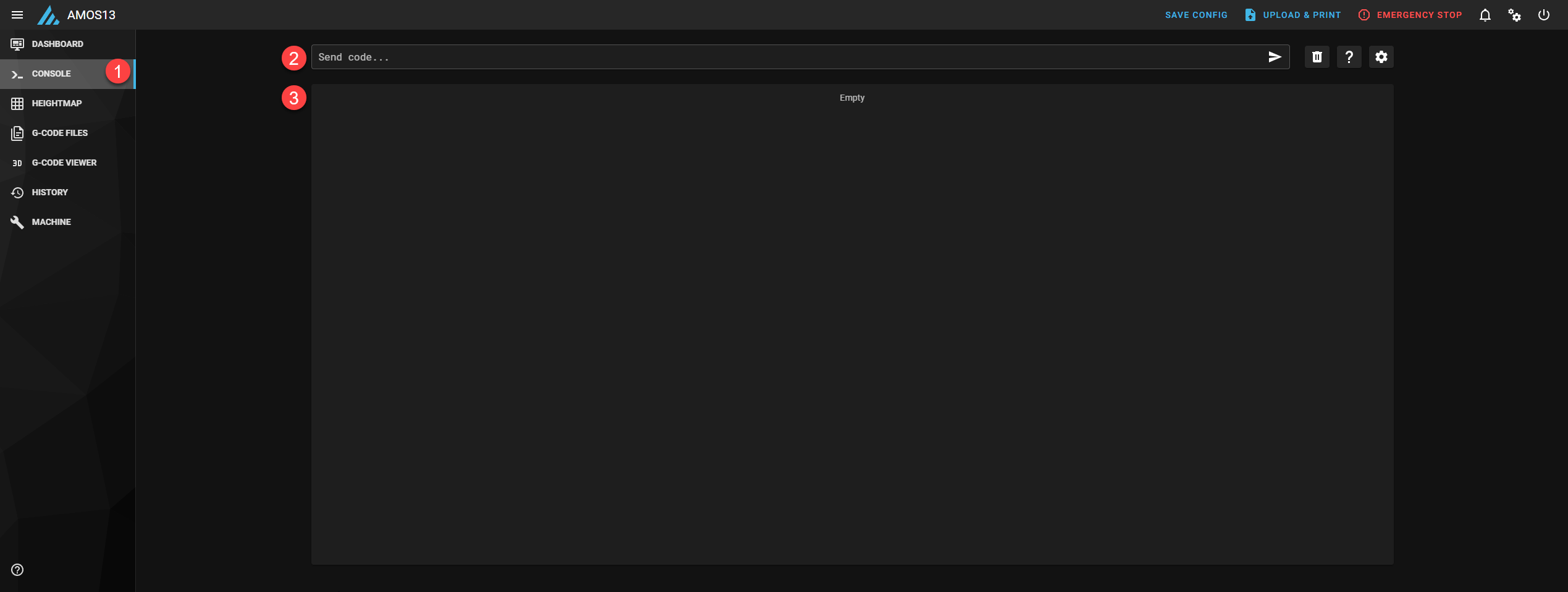
- Select the Console Tab
- Here you can manually send code.
- Here you will be able to see the history of commands run since the restart.
¶ Hightmap Tab
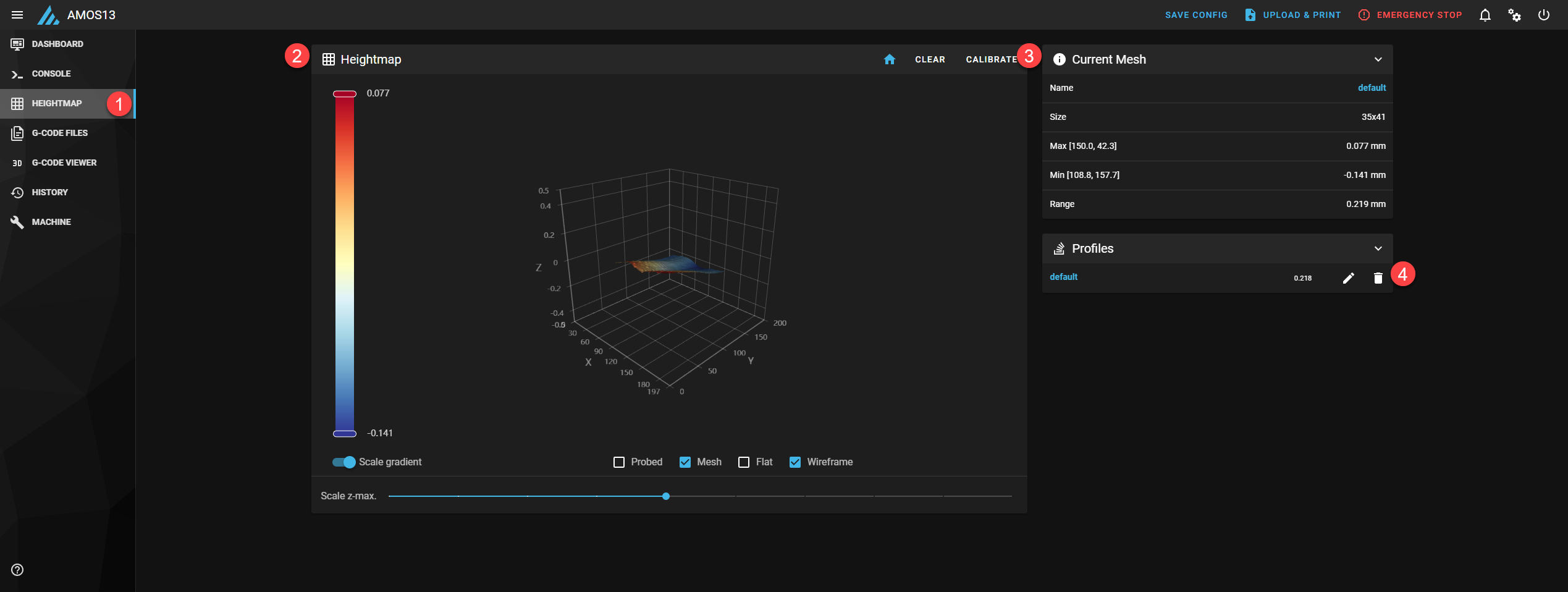
- Select the Hightmap Tab
- Here you will see the selected hightmap
- The Calibrate button will run a height map of the full bed size
- In the profiles panel, you will see all saved heightmaps; the default will be reset with every new print start.
¶ G-Code Files Tab
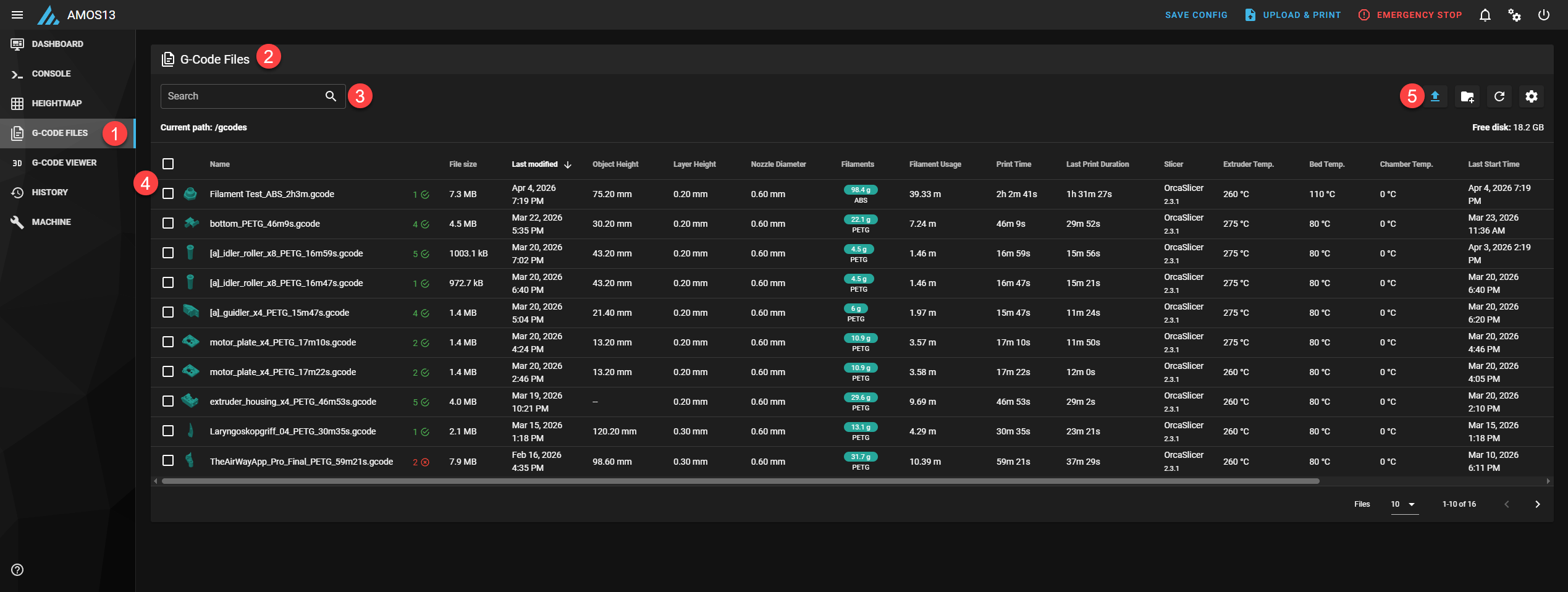
- Select the G-Code Files Tab
- In this panel, you will find the list of all G-Code files that have been uploaded.
- Here you can search for your file by name
- Here you will find the files along with all info about this print file.
- This upload file button will allow you to upload your file to be stored in onboard storage.
¶ Machine Tab
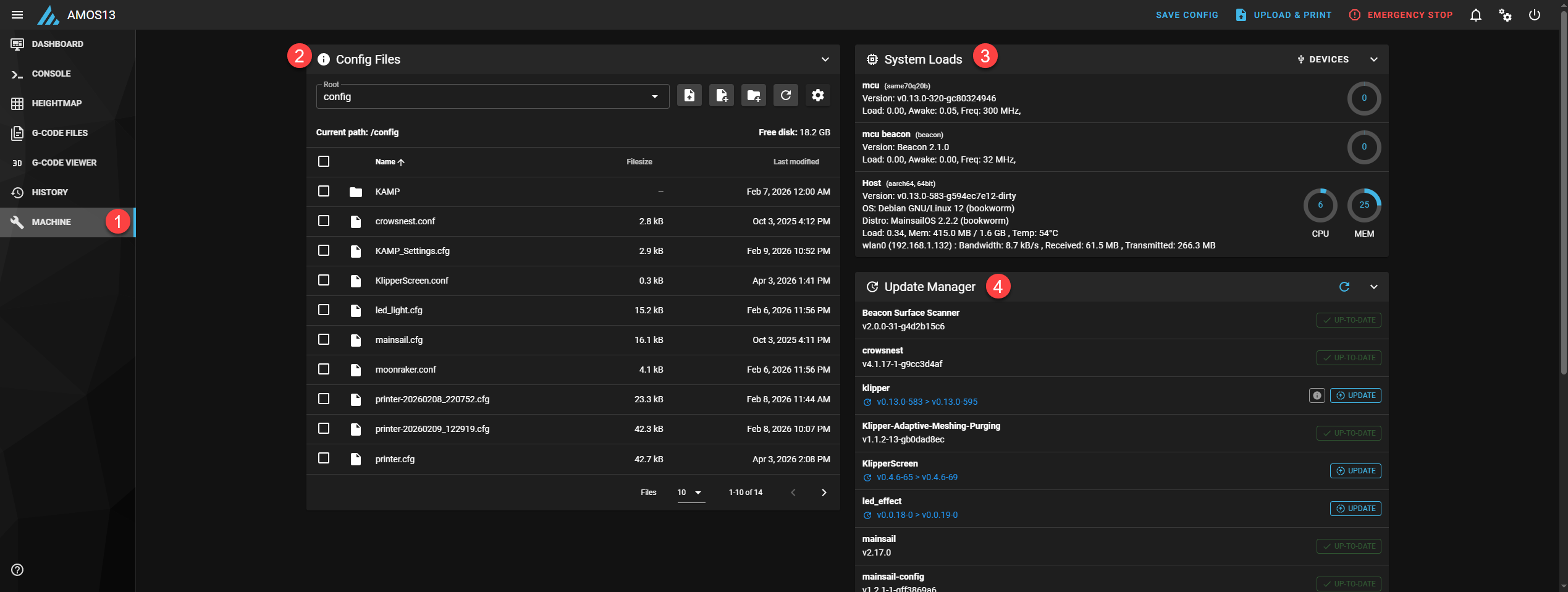
- Select the Machine Tab
- In the Config Files panel, it lists all your systems' config files
- System Loads panel shows the current load on individual electronic components; this is mostly used for troubleshooting.
- Update Manager allows you to update your system's firmware
¶ Update Manager- Updating Your Unit
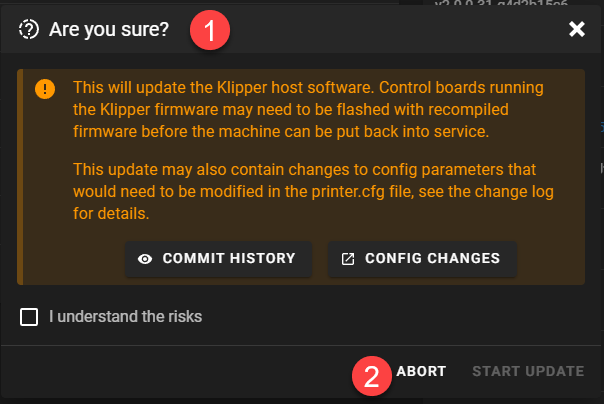
Select the file you would like to update, or select all updateable files.
- Once you select the files to update, a panel will open asking if you want to update
- If you do not want to run the update, select abort
¶ Start the Update
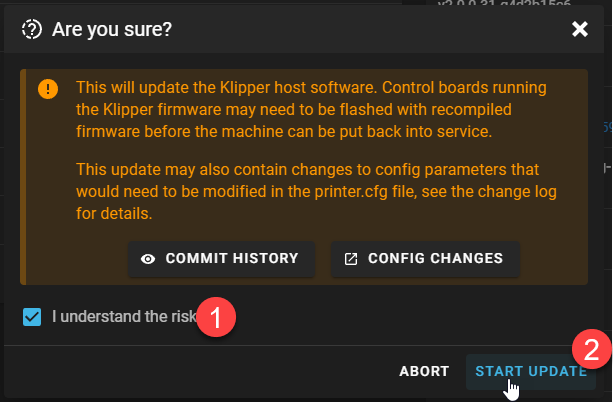
- If you are ready to start the update, check the “I understand the risk.”
- Next, select the Start Update